How to use Google Maps offline: download a map before you travel

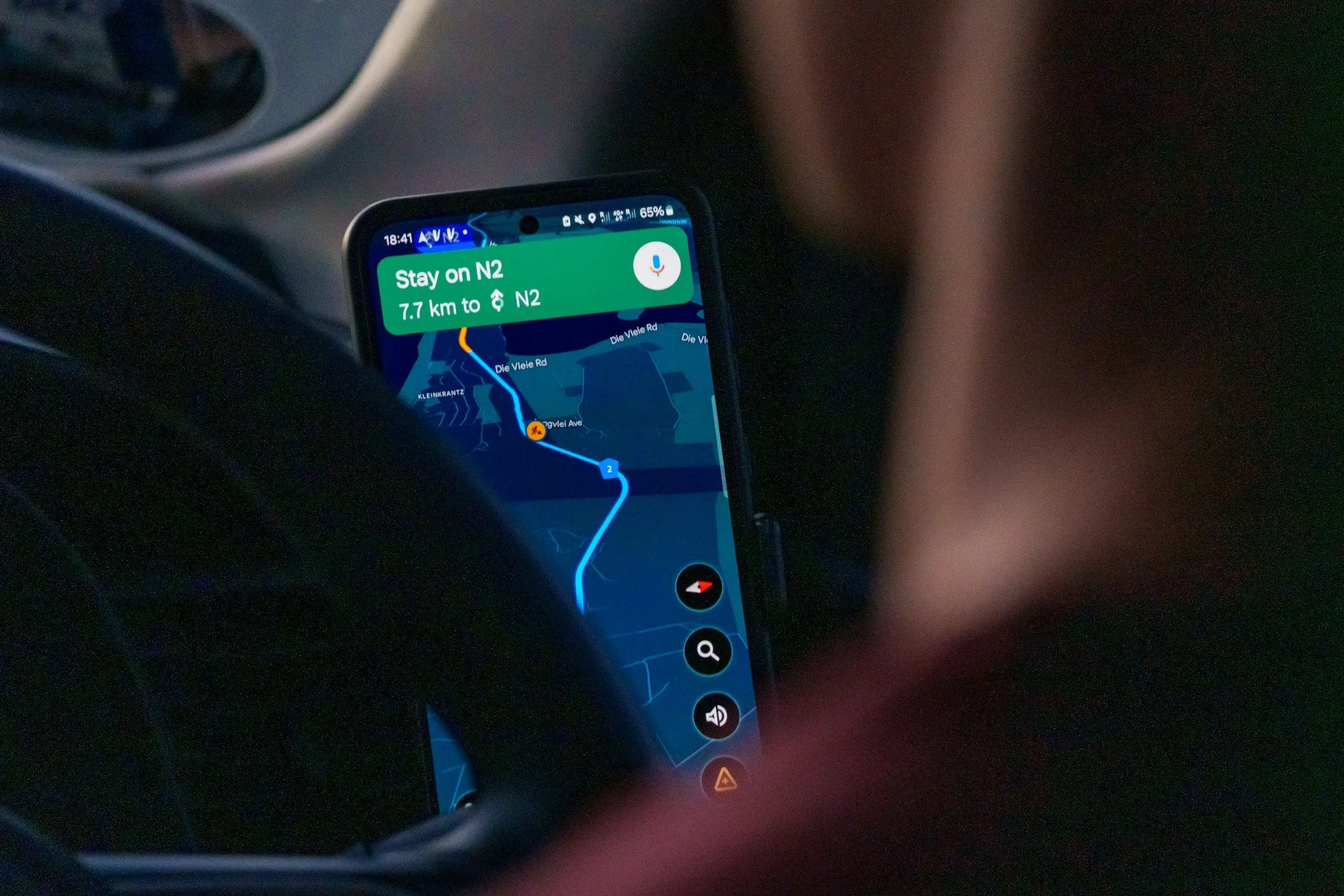
To use Google Maps offline, download the area you need while you are connected: open Google Maps, search for the place, and choose to download an offline map, or pick your own area from the Offline maps section of your profile. Then, without a signal, you can search the map and get driving directions inside that area.
Doing it takes two minutes on wifi and saves you in the first hour in a new city, when you have no data and no idea which way to walk.
How to download an offline map
The menus move around now and then, so if a name below does not match, look for "Offline maps" in the menu that opens from your profile picture. As Google's help page describes it for Android:
- Open Google Maps, and make sure you are connected and signed in.
- Search for a place, for example a city.
- On the place's information, find the option to download an offline map and choose Download.
Another way, which gives you more control:
- Tap your profile picture.
- Choose Offline maps.
- Choose to select your own map, move and resize the area, and tap Download.
The steps on an iPhone are very similar. Google has a separate help page for iPhone and iPad, so check it if a menu looks different.
On Android, you can also choose to store offline maps on an SD card, if your phone has a card set up as portable storage.
What works offline, and what does not
This is the part that catches people. According to Google's help page, as of November 2026:
- Works: navigation, if the whole route is inside the downloaded area. You can also look up places and see the map.
- Does not work: transit, cycling and walking directions are not available offline. When driving offline there is no traffic information and no alternative routes.
So an offline map is excellent for finding where you are and driving from A to B. For walking and public transport, you need another plan: a screenshot of the route, a paper map, or a transit map downloaded before you go. Our guide to public transport in a new city covers how to prepare.
Choose the area with care
Make the area big enough to cover your trip, but remember that big areas take space on your phone.
- One city: download the city and a margin around your accommodation.
- A road trip: download the whole region the route passes through, and check that no stretch falls outside it, because directions only work if the entire route is inside.
- Several cities: download each one separately, so you can delete one as you finish it.
- The airport and the way out of it: make sure the area includes both.
Check the storage on your phone before a big download. If space is tight, download the places you will need first.
Offline maps expire
Offline maps are not kept forever. Google says they expire and need updating. If a map is about to expire within fifteen days and you are on wifi, Google Maps tries to update it automatically, and there is an auto-update setting in the Offline maps settings. You can also update by hand from the Offline maps list.
The practical rule: for a long trip, download before you go, update when you are on wifi at your accommodation, and do not rely on a map you downloaded months ago.
Where it is not available
Google notes that offline maps are not available in some countries or regions. If your trip is to one of those, you will need another way: another mapping app that supports offline use, or paper maps. Check before you go, not at the airport. Our overview of offline map apps lists other options.
Make it part of your trip plan
An offline map shows you the world. It does not know what you planned. For that, save the places you want to visit in a list in the map app, or keep a plan that works offline.
A good setup is both: an offline map for finding your way, and an offline plan for knowing where you are going.
A five-minute routine for every trip
- On wifi, download a map of each place you will visit.
- Open each one in airplane mode and check you can search and see your accommodation.
- Save your accommodation and the first few places in the map app.
- Take a screenshot of the route from the airport to where you are staying.
- Set a reminder to update the maps once you arrive and are on wifi.
For everything else you should prepare, how to travel offline is a good companion.
A note on accuracy
An offline map is a snapshot. Roads close, places move and new ones open, so what you see may be out of date when you have been away from a connection for long. Treat it as a guide, and when a street looks wrong, ask a local or check again once you are back on wifi.
Other ways to find your way
Offline maps are one tool. Also save a screenshot of the route from the airport, write your accommodation's address on paper, and learn the name of the nearest big landmark. If your phone fails, any of these lets you ask for directions. Together they cover almost every situation a lost signal can create.
Next step
Tonight, download one city map, switch on airplane mode and search for a street in it. Once you have seen it work, you can do the same for the rest of your trip.